Window Switcher
A macOS utility for quickly switching between multiple windows of the currently active application.
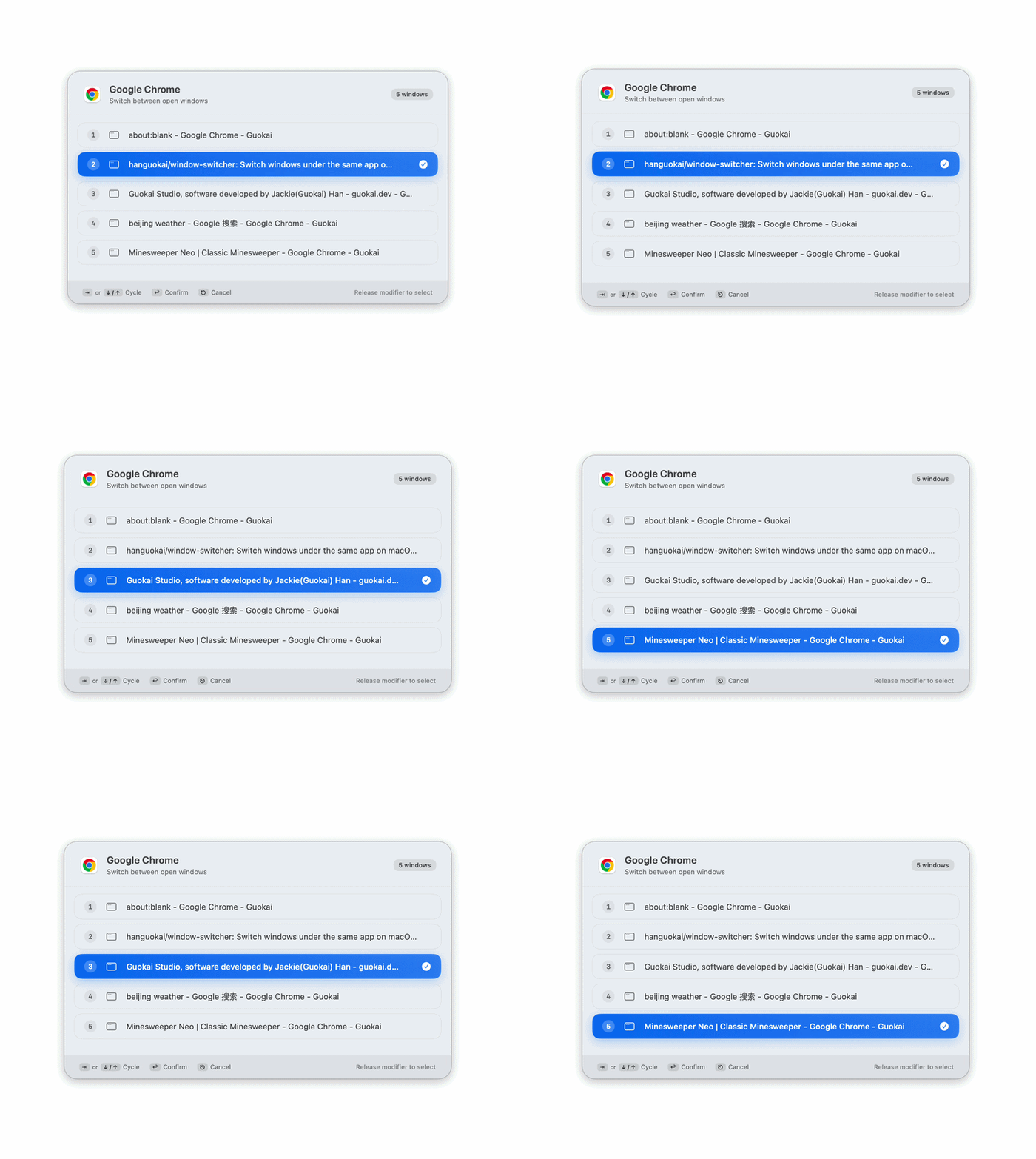
Features
- Global Hotkey: Default
⌥+`(Option + Backtick), customizable in Settings (multiple shortcut options available) - Window Cycling: Press the hotkey to cycle through windows, release the modifier key to confirm
- Reverse Cycling: Hold Shift + hotkey to cycle backward
- Menu Bar App: No Dock icon — lives in the menu bar with a ⌨️ icon
- Launch at Login: Optionally start automatically when you log in
- Update Check: One-click update check in Settings
System Requirements
- macOS 13.0 (Ventura) or later
Installation
- Go to the GitHub Releases page and download the latest
.dmgfile - Open the downloaded DMG file
- Drag Window Switcher into the Applications folder
- Launch Window Switcher from Applications
- On first use, the system will prompt you to grant Accessibility permission — click Allow (see details below)
Usage
- After launch, a ⌨️ icon appears in the menu bar
- Open multiple windows of the same app (e.g., multiple Finder windows or browser windows)
- Press
⌥+`(Option + Backtick) to bring up the window switcher overlay - Continue pressing
⌥+`to cycle through windows (hold Shift to cycle backward) - Release the Option key to switch to the selected window
- Press Esc to cancel
Menu Bar Options
Click the ⌨️ icon in the menu bar:
- Settings... — Customize hotkey, launch at login, check for updates
- Check Accessibility Permission — Check Accessibility permission status
- Quit Window Switcher — Quit the app
Updating
- Open menu bar → Settings... → scroll to the About section
- Click Check for Updates
- If a new version is available, click the Download button to open the release page in your browser. Or visit the GitHub Releases page directly.
- Download the new DMG file
- Click ⌨️ in the menu bar → Quit Window Switcher to quit the current version
- Open the new DMG and drag Window Switcher to Applications (replace the old version)
- Relaunch Window Switcher
Accessibility Permission
Window Switcher requires macOS Accessibility permission to read and manage windows.
First-Time Authorization
The first time you press the hotkey, the system will automatically show an authorization dialog. Click "Open System Settings" and enable the permission.
You can also trigger this manually via menu bar → Check Accessibility Permission.
Troubleshooting
If the hotkey doesn't respond or window switching doesn't work, try the following steps:
- Open System Settings → Privacy & Security → Accessibility
- Find Window Switcher in the list
- Toggle it off (or click the
−button to remove it), then toggle it back on (or click+to re-add it) - Click ⌨️ in the menu bar → Quit Window Switcher to quit the app
- Relaunch Window Switcher